Contents
- Index
Performing Queries
Using the querying tool, you can search the data for things like: First name, year of death etc. This is particular handy when you have a photograph and can't find the name in the database. This often happens when the wife has remarried and the last name has changed.
To query the data, click on the Query button. A window will appear:
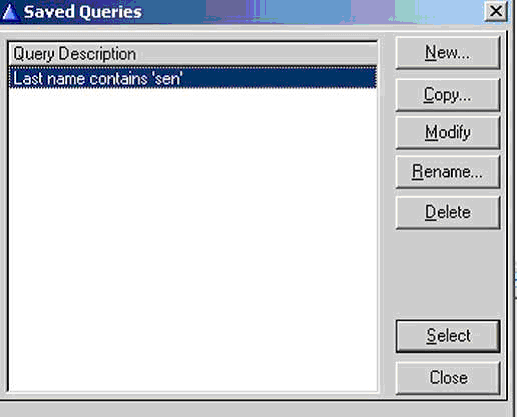
Fig. 7
You can select from the list of already saved queries or create your own. The program will then search the data and will display any records that match your search criteria.
Creating a new Query
To create a new query, select New. A screen will appear:
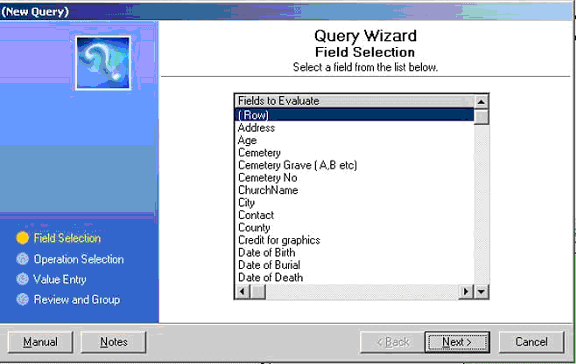
Fig. 8
Select the field you want to search for the list and click on Next. A new screen will appear allowing you to add operations :
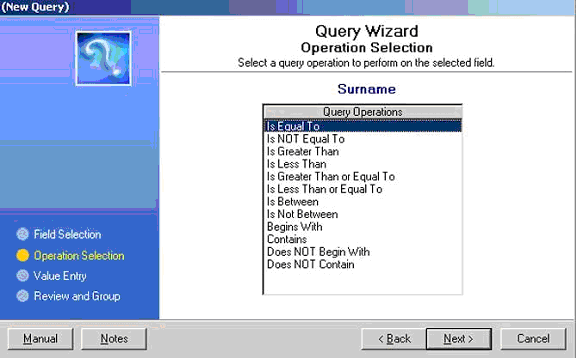
Fig. 9
After selecting the operation, select Next. A new screen will appear asking you for the value:
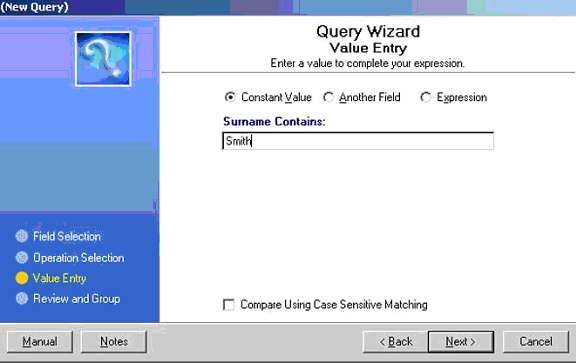
Fig. 10
After entering the value, click on Next. A new window will appear:
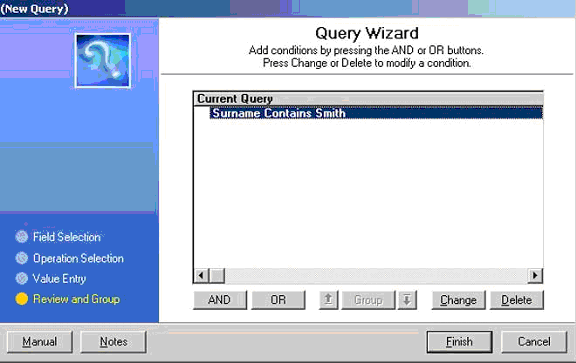
Fig. 11
If you're finished creating your query, select Finish. You will then be asked if you want to save the query and if you do, what name should it be called. After saving the query, the program will search the data looking for any records that match your search criteria, and if found, displaying them in the list box. To clear the query, select 'Reset'.
Note: To search the Buried field, you must use the Manual entry mode. Because the Buried date is not text, you must use the following query:
Year(PLO:DOS) = 1945