Contents
- Index
Importing Data
Many times you are given cemetery data in the form of a spreadsheet. You can import this data into the program by:
1. Create a Comma Separate Variable file ( .csv ) file. This can be done from Excel by selecting File/Save As and selecting CSV (comma delimited). This will create a file in the CSV format.
2. In the Cemetery Manager program, select File/Maintenance/Import./Interred
3. A window will appear, asking for the name of the .csv file.
4. After selecting the file name you will see a new screen.
5. The list box on the left contains the fields found in the .csv file.
6. The list box on the right contains the fields defined in the Cemetery Manager database.
7. You must define the relationship between the fields in the .csv file ( the left table ) and how they align to the field names in the right hand table. You do that by using a drag-n-drop process.
8. For example, the Field_1 column in the left table is equal to the Full Name column in the right hand table.
9. Click on the Field_1 row in the left table and hold down the left mouse button. While holding down the left mouse button, drag it over to the right hand box aligning it over the Full Name row. Release the mouse button, and you will see the program now shows the FullName field = Field_1.
10. Continue using a drag-n-drop process to define how each of the fields in the left table aligns to the right hand table.
11. When fully defined, click on the OK button
12. You will now see a progress window showing that the records are being imported into the Cemetery Manager program.
13. After the progress window disappears, you can look at the newly imported records at File/Import/Interred.
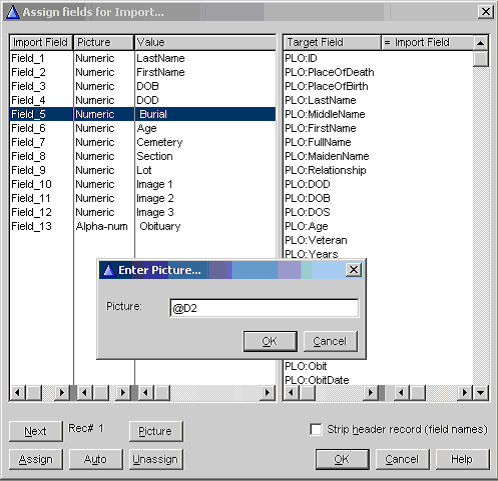
Fig. 17
Note:
To import data into the PLO:DOS ( Date of Burial ) field correctly, you must define how the source data is formatted. The PLO:DOS field is stored as a number, not as TEXT. This means you must define how your source data is formatted. To define this field, highlight the field that contains your burial date. Then click on the Picture button. You will then be given a window to enter the date picture ( see Fig 20 ). Enter the format of the source from the following table:
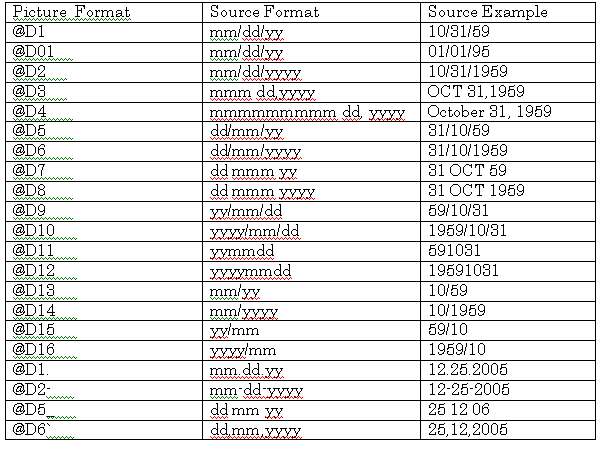
Caution: If your data came from Excel, be careful on date fields as Excel likes to mess up your data by formatting it incorrectly, loosing the 4 character year..
You may now click on the OK button to import your data. During import, the program will make the last name UPPERCASE and format the DOB and DOD to dd mmm yyyy format.