Contents
- Index
Exporting Data
The data is contained in 2 files, Burials.tps and Images.tps, linked by a common field ( ID ).
Interred Data
If you want to export your burial data, select File/Maintenance/Export/Interred. A window will appear ( see Fig 18 ) which allows you to select what fields to export. The left list box contains the fields in the Interred table. To select a field for export, you can use drag-n-drop from the left list box to the right list box or you can highlight the field in the left list box, by clicking on the field, and then click on the Add button. After you have selected the export fields, click on the OK button. You will then be asked to name the output file. The file created is a Comma Separated Variable ( CSV ) file. This file always contains 3 additional fields for your tombstone photos ( labeled Image1, Image2, Image3 ). The files are added automatically by the program.
See the File Structure paragraph for the definition of each field that can be exported.
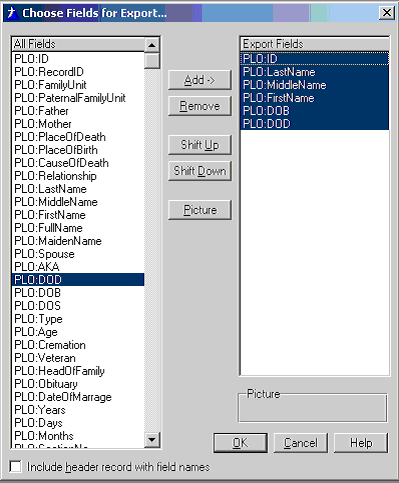
Fig. 18
Image Data
To export the Photograph data, select File/Maintenance/Export/ Tombstone Photos. A window will appear ( Fig 19) which allows you to select what fields to export. Select the field in the left list box and click on 'Add'. After selecting all fields for export, click on OK. The program will ask you the name of the file to save the data to. The file created is a Comma Separated Variable ( CSV ) file.
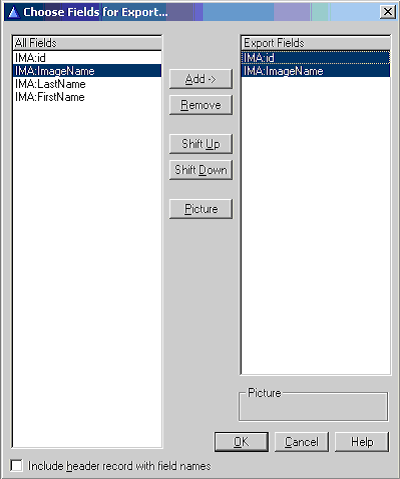
Fig. 19