Contents
- Index
Photo Matching
You are now ready to match your photographs to your interred names. If you select File/Photo Matching, you will see the following:
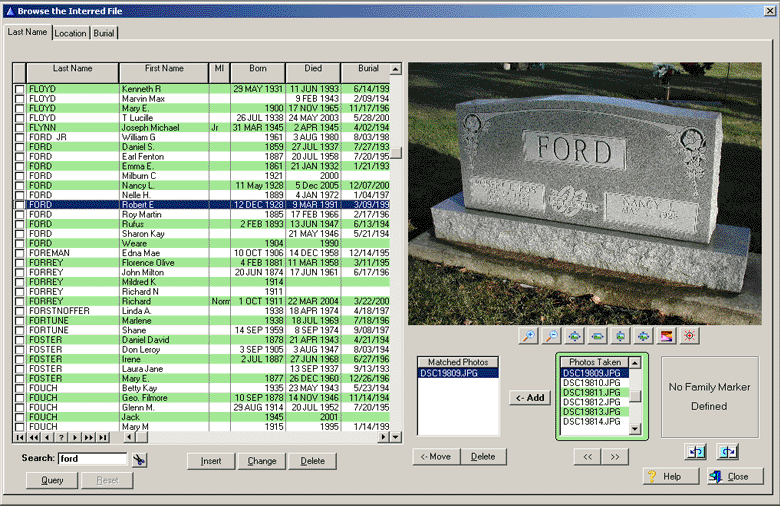
Fig. 5
The photo matching process consists of looking at a tombstone photograph and determining the name on the tombstone and finding the name in the list box, or entering a new interred record in not found.
When you click on a photograph name in the Photos Taken list box , you will see the tombstone photograph displayed. You can move the photograph around the window by putting the mouse cursor over the photo and pressing the left mouse button. The mouse pointer will now changed to a hand and you can move the photo around by moving the mouse. You also have zoom in / zoom out buttons to adjust the photograph image. Buttons are provided to lighten the photo ( helps to see in a dark shadow ) or invert the colors.
The list box on the left contains the names of the interred if you have pre-entered the names or done an Data Import of your information. All columns in the list can be sorted by clicking on the appropriate column header. The tabs across the top allow you to display the interred by last name, burial location or in burial date order. If your data contains section, lot and space information, the Location tab is very handy to display the information by section, lot and space. Often times, the wife has remarried ( i.e. last name has changed ) and you want to know who is buried next to the husband. Selecting the Location tab, will show you this information.
You can either match the photo with names already imported into the program ( see Importing ), or by entering the name directly into the program.
If you already have loaded your names, enter the last name into the Search field and the interred list box will move to the name as you enter each letter in the last name. When you have located the name, click on the check box at the left of the interred name. This will identify that you are going to match the photo shown to that name. To add the photograph to the interred name, click on the <-Add button. You will now see the photograph name appear in the Matched Photo list box. The photograph name shown in this list box is associated with the highlighted interred entry in the interred list box. As you click on the names in the interred list box, you will see the Matched Photo list box show the associated photograph name. Notice, the list box selected ( either the Photos Taken or Matched Photos ) is highlighted in green. This means, the photograph in the selected list box is the displayed photograph.
If the name on the tombstone is not in the list of interred, click on the Insert button to add the name. Enter the last name, first name and any dates from the tombstone. If the interred is a veteran, tab over to the VET column and press the Space bar to check the check box. Notice, the Last Name is ALWAYS entered in CAPS, the First Name is always entered with the first letter capitalized. The program automatically controls the case of the entered value ( CAPS or Capitalize ).
The column labeled MO stands for Marker Only. If the name on the tombstone is not deceased and you want to enter the name into the database, check the MO column. Normally, you would not include those individuals on any web pages. However, the program will allow you to include them in the web pages. ( See Creating Your Web Pages ).
If the marker contains only a DOD ( Date of Death ) and the age ( Years, Months, Days ) and you want to calculate the DOB ( Date of Birth ), you can enter the Years, Months, Days and the program will calculate the DOB when you complete the insert. These fields may not be visible in the list box, but can be seen by scrolling to the right in the list box.
After you've entered all of the information on the interred line, press Enter to save the record. Notice the photograph from the Photos Taken list box has been automatically added to the new record ( as seen in the Matched Photos list box ) and this same file name appears in the Matched Photos list box.
If you have a family marker and separate headstones, you'll want to include both photographs with the interred record. This can be done using 2 Add's or you can Set Family Marker by clicking on  button. The family marker will be shown ( small image ) and will be automatically added with the individual tombstone photo when you click on <- Add. To clear the family marker ( i.e. no longer add it to all records ), click on the Clear Family Marker
 button.
You can move up or down in the Photos Taken list box by clicking on the < or > buttons.
The program always remembers the last photograph you have matched. The next time you come back to the Photo Matching screen, the program will always show the last photograph matched, and the interred list box has the name highlighted.
The Query button allows you to query your interred data to find an interred record. See the Performing Queries section.